
Page Saver Basic & Pro
Documentation
- Using the Page Saver Toolbar Item
- Activating and Using the Page Saver Add-on Bar Item
- Using the Browser Context Menu
- Selecting and Capturing a Region on a Page
- Customizing Page Saver
- Using Page Saver from the Command Line
- Known Issues and Limitations
- Additional Assistance
- Other Information
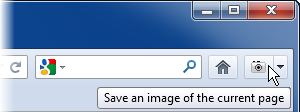
- Alt — save an image of the visible portion of the current web page.
- Shift — save an image of the entire web page (including the portion that does not fit in the browser window).
- PROCtrl (Windows and Linux) or Command (Mac OS) — select and save an image of a rectangular region on a page (Page Saver Pro only). Look below for more information.
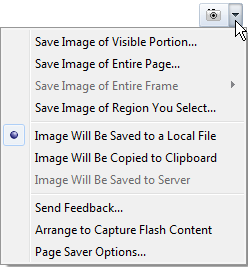
- Save Image of Visible Portion...
- Save Image of Entire Page...
- Save Image of Entire Frame
- PROSave Image of Region You Select...
If the page you are viewing contains any frames or iframes, the Save Image of Entire Frame item will provide a menu that contains a list of each top-level frame on the page that may be captured.
Check the Arrange to Capture Flash Content menu item to have Page Saver alter certain pages as they load to make it possible to capture the Flash content. Enabling this feature may cause some pages that contain Flash content to load incorrectly. Learn more.
PROIn Page Saver Pro, you may also use the toolbar menu to choose a destination for the image (a local file, your computer’s clipboard, or, if configured, an FTP, HTTP, or HTTPS server).
The toolbar menu also contains a Send Feedback... item which takes you to a form on the Pearl Crescent web site and a Page Saver Options... item which may be used to open the options window.
To change the position of the toolbar item or remove it entirely, choose Customize... from the “hamburger” menu or, if you have a menu bar, choose View | Toolbars | Customize....
- Save Image of Visible Portion... — save an image of the visible portion of the current web page.
- Save Image of Entire Page... — save an image of the entire web page (including the portion that does not fit in the browser window).
- Save Image of This Entire Frame... — save an image of the entire contents of a frame or iframe.
- PROSave Image of Region You Select... — select and save an image of a rectangular region on a page (Page Saver Pro only). Look below for more information.
To hide one or more of the Page Saver context menu items, uncheck the appropriate checkbox on the Page Saver options window’s General tab.
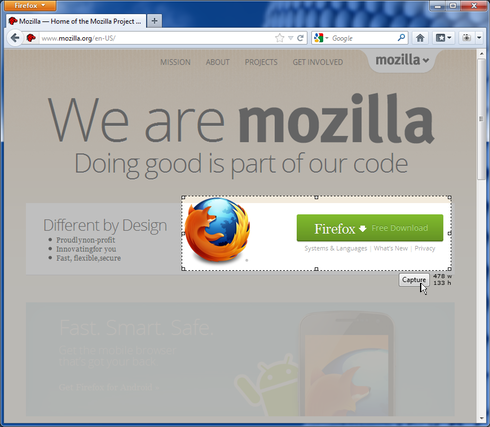
The contents of the page will be dimmed and a large “cross hair” mouse pointer will appear along with the position of the cross hair. You can then click and drag the mouse to highlight a region on the page (note you cannot scroll the page during the capture).
After you release the mouse button, you may adjust the size and position of the region. During this process, the dimensions of the region to be captured are displayed. Click and drag the “grab handles” along the edges of the region to resize it. To reposition the selected region, click inside it and drag it with the mouse or use the Left Arrow, Right Arrow, Up Arrow, and Down Arrow keys to “nudge” it one pixel at a time (hold down the shift key while pressing an arrow key to move it 10 pixels at a time).
To complete the capture, click the Capture button or press the Enter key or Return key. To cancel the capture, press the Esc key.
Figure 3 shows a screenshot of the region capture process. You may also view a video demonstration.
From the Page Saver option window’s General tab, you may make capturing a region the default action and you may add a keyboard shortcut. Refer to the next section (Customizing Page Saver) for more information.
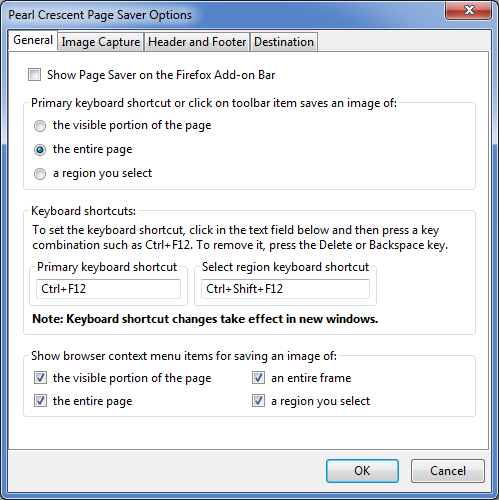
- Choose Page Saver Options... from the menu associated with the Page Saver toolbar item.
- Open the Firefox Add-ons window and double-click on Pearl Crescent Page Saver Basic or Pearl Crescent Page Saver Pro.
Use the Image Capture tab (shown in Figure 5) to specify a pattern for file names, to choose whether or not to be prompted for the file name and location (and to specify a destination directory if not prompted), to choose whether or not to overwrite existing local files, to limit the size of saved images, to set the image format and its corresponding options, and to choose whether a sound is played after capturing each image.
You can arrange to capture Flash content by checking the appropriate box. Learn more.
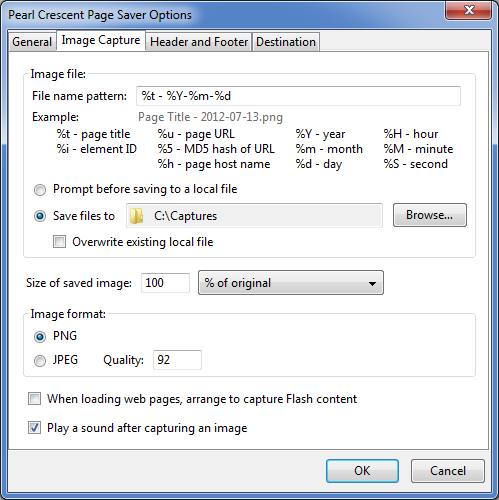
- %t — the page title (replacing characters that cannot be used in file names with a hyphen).
- %Y — the year, e.g., 2015.
- %m — the month, e.g., 10 for October.
- %d — the day of the month, e.g., 31 for the 31st day of the month.
- %H — the hour using a 24 hour clock, e.g., 23 for 11pm.
- %M — minutes.
- %S — seconds.
- %u — the page URL (location) after automatic redirects have been followed.
- %5 — an MD5 hash of the page URL. This is useful when integrating with services such as the delicious JSON feeds. The URL used to generate the MD5 hash is the final URL after automatic redirects have been followed.
- %h — the page host name (taken from its URL after automatic redirects have been followed).
- PRO%i — element ID specified on command line.
- %% — a ‘%’ character.
If the “Prompt before saving to a local file” radio button is selected, Page Saver will ask during each capture for a file name and destination directory. If the “Save files to” radio button is selected, you will not be prompted; in this case, you may configure a destination directory. If the overwrite checkbox is checked, existing files are overwritten without prompting; if it is not checked, Page Saver will generate a unique file name by appending (1), (2), etc. to the name. The overwrite option is only consulted if the “Save files to” radio button is selected or if Page Saver is invoked from the command line.
If JPEG format is chosen, you may specify the image quality which is an integer value that ranges from 0 to 100 (with 100 providing the best quality). Since JPEG uses lossy compression while PNG uses lossless compression, PNG is a better choice when a high quality image is needed.
Page Saver will truncate very long file path names to avoid problems when saving images to a file. There is a hidden preference named extensions.pagesaver.file.name.maxlength that may be modified to change the maximum length of the file paths that Page Saver generates. Hidden preferences may be modified using Firefox’s about:config advanced configuration editor.
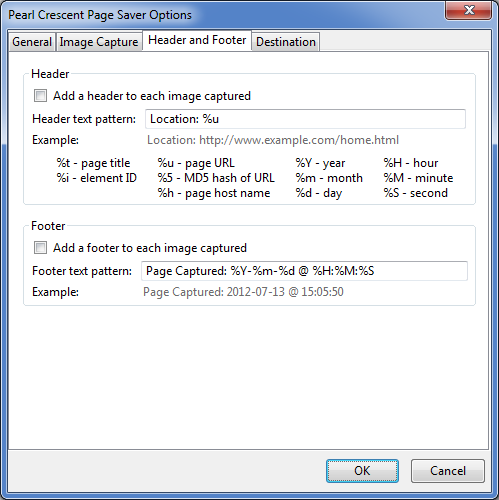
The header and footer text patterns accept the same formatting characters as the file name pattern (located on the Image Capture tab).
There are also four hidden preferences that control the height and text format for the header and footer:
- extensions.pagesaver.header.height — height of header in pixels.
- extensions.pagesaver.header.style — CSS format for header text.
- extensions.pagesaver.footer.height — height of footer in pixels.
- extensions.pagesaver.footer.style — CSS format for footer text.
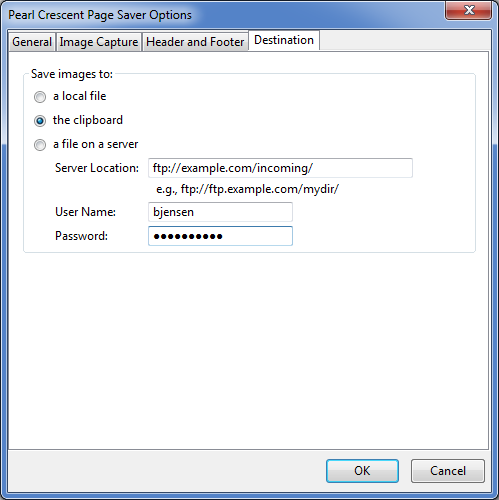
By default, Page Saver will append a file name to the URL before uploading each captured image. However, if the URL ends with .png, .jpg, or .jpeg it will used “as is” and all captured images will be uploaded to the same location.
firefox -saveimage https://www.mozilla.org/? or & that will be interpreted by
your command shell. For example:
firefox -saveimage "https://www.google.com/search?q=Page%20Saver&ie=utf-8&oe=utf-8"By default, images captured from the command line are saved to Firefox’s Download Folder. You can set this location from the Downloads section of the Firefox Options window. In Page Saver Pro, the -saveas command line flag may be used to specify the file path where images are saved (see below).
If Firefox is not running, it will exit after saving the image.
On Mac OS, it is generally better to run firefox-bin rather than firefox (which is a script that starts firefox-bin). For more information about using Firefox from the command line, refer to this mozillaZine article.
The following sections provide additional information about using Page Saver from the command line:
- Controlling the Command Line Image Capture Process
- Additional Command Line Examples
- Determining Whether a Capture Succeeded
- Extra Information Provided with Result Code 0 (Success)
- Extra Information Provided with Result Code 12 (Request Error)
To control the size of the browser window that is opened, use the -width and -height flags to specify the window width and height in pixels. For example:
firefox -saveimage https://www.mozilla.org/ -width 800 -height 600To specify a delay before capturing a page, use the -savedelay flag (this is useful for pages that add content after the initial page load is complete). The delay specified is in milliseconds. For example, to specify a one second delay, use a command such as:
firefox -saveimage https://www.mozilla.com/ -savedelay 1000To capture Flash content, include the -captureflash flag (this is an alternative to checking the arrange to capture Flash content box in the Page Saver Options). For example:
firefox -saveimage https://www.adobe.com/ -savedelay 1000 -captureflashPROIn Page Saver Pro, use the flashdelay option (part of the -saveoptions) to specify an additional delay before capturing a page that contains Flash content. Learn more.
PROIn Page Saver Pro, include the -saveas flag on the command line to specify a directory, a file, or a server location (URL) where the image will be saved. You may also specify the word clipboard to place a copy of the captured image on the system clipboard. Here is an example that uses a file path:
firefox -saveimage https://www.mozilla.org/ -saveas /tmp/moz.pngc:\moz.png and on Linux and Mac OS X you should use
a path like /tmp/moz.png.
You may also use a file name pattern to specify the file name. For example, to include the page title in the file name, use a command like this:
firefox -saveimage https://pearlcrescent.com/ -saveas "/tmp/%t.png"To save to the clipboard, use a command like this:
firefox -saveimage https://www.mozilla.org/ -saveas clipboardTo upload the captured image to a server, specify an ftp://, http://, or https:// URL using the -saveas flag. If a password is needed and it has not been saved in the Firefox Password Manager, you will need to include the password in the URL. For example:
firefox -saveimage https://flickr.com/ -saveas ftp://joe:secret@example.com/upload/By default, Page Saver will append a file name to the URL before uploading the captured image using FTP or HTTP PUT. However, if the URL ends with .png, .jpg, or .jpeg it will be used “as is” to upload to a specific file. For example, to upload a captured image to a file named img42.png, use a command similar to the following:
firefox -saveimage https://flickr.com/ -saveas https://example.com/img42.png
firefox -saveimage https://www.amazon.com/ -saveoptions visible,delay=2000,scale=50%visible— capture the visible portion of the page instead of the entire page.useoriginalurl— use the original URL provided on the command line when replacing the special character sequences %h, %u, and %5 within file name and header/footer patterns. Without this option, the URL used is the one that results from following all automatic redirects.maxwait=ms— wait at most ms milliseconds for the page to load. A slow page load is stopped and an image of the partially loaded page is captured.refreshmaxwait=ms— wait at most ms milliseconds for a page that contains a meta refresh directive to load the next page.delay=ms— wait an extra ms milliseconds after the page has finished loading before capturing the image (this works the same as the-savedelayflag).flashdelay=ms— if the page contains Flash content, wait an additional ms milliseconds after the page has finished loading before capturing the image (this delay is in addition to any specified by-savedelayordelay=ms). If theflashdelayoption is used, Page Saver Pro operates as if you also used the-captureflashflag.top=pixelval— omit from the captured image the first pixelval pixels along the top of the page.left=pixelval— omit from the captured image the first pixelval pixels along the left side of the page.bottom=pixelval— crop the captured image along the bottom at pixelval pixels. If a negative value is specified for bottom, the captured image is cropped that many pixels up from the bottom edge.right=pixelval— crop the captured image along the right side at pixelval pixels. If a negative value is specified for right, the captured image is cropped that many pixels to the left of the right edge.element=elementID— capture the region occupied by the first DOM element on the page with an id of elementID. If more than oneelement=elementIDvalue is included in-saveoptionsthen each element will be captured as a separate image. If no element with the ID specified exists within the page, then no image is captured and an error is reported. Tip: to include the element ID in the name of the image files that are saved, add%ito the the file name pattern (located on the Image Capture tab within the Page Saver Pro options window).scale=scaleval— reduce or limit the size of the captured image. If scaleval ends with a % character, the image is scaled to the specified percentage. If scaleval is a simple integer, the largest dimension of the resulting image will be at most scaleval pixels.format=imagetype— use imagetype as the output format when saving images to a local file or to a server. The choices for imagetype are:pngjpegjpeg@quality=Q(JPEG format with a quality of Q — ranging from 0 to 100)
html— if saving an image to a local file, also save a copy of the HTML DOM to a separate file. The name of the file will be the same as the image file except it will have an extension of .html.
firefox -saveimage https://getfirefox.com/ -width 1024 -height 768 -savedelay 500
firefox -saveimage http://mozilla.org/ -width 800 -height 600 -saveoptions visible,useoriginalurl,scale=300 -saveas /tmp/%u.png
firefox -saveimage http://technorati.com/ -saveoptions element=sb-toptags -saveas /tmp/toptags.png
firefox -saveimage http://flickr.com/photos/tags/lighthouse/ -saveoptions format=jpeg@quality=100
firefox -saveimage "https://finance.yahoo.com/q?s=AAPL" -saveas clipboard
firefox -saveimage https://news.google.com/ -saveoptions bottom=500,scale=50% -saveas http://jill:secret@example.com/myfiles/
firefox -saveimage http://www.adobe.com/ -savedelay 2000 -saveoptions flashdelay=3000
Each time Page Saver is run from the command line, it will write a one-line status message to the standard error stream. The status message will consist of the text PageSaver:CaptureComplete followed by an integer result code and an optional text string that provides more detailed information. For example, for a successful capture the message might look like this:
PageSaver:CaptureComplete 0 (success)-HTTP:200You may use the -savelog flag to send the Page Saver status messages to a file. For example:
firefox -saveimage https://www.mozilla.org/ -savelog /tmp/capturelog.txtOn Microsoft Windows, you must start Firefox with a -savelog flag or with the -console flag to see the Page Saver status messages. Since Page Saver opens a new window for each capture and closes it after the capture is done, while you are experimenting with various Page Saver command line flags you may want to first start a copy of Firefox with the -savelog or -console flags only and then run additional Firefox commands that include Page Saver options. For example:
cd "c:\Program Files\Mozilla Firefox"

firefox -savelog C:\Temp\CaptureLog.txt

firefox -saveimage https://www.mozilla.org/

firefox -saveimage https://getfirefox.com/ -savedelay 2000

...
Table 1 lists all of the the result codes that may be returned in the PageSaver:CaptureComplete messages.
| Result Code | Description |
|---|---|
| 0 | The image capture was successful. Extra information may be included (see below). |
| 3 | An invalid parameter was specified. |
| 4 | The Page Saver canvas is not available. This could occur if both the Location Bar and Activity Indicator have been removed from the Firefox toolbar. |
| 5 | A error occurred while trying to draw an image of the page content. |
| 6 | A error occurred while trying to extract the image data so it could be saved. |
| 7 | The destination file path is invalid. |
| 8 | An error occurred while writing to the destination file. |
| 9 | An error occurred while uploading an image to a server. |
| 10 | An error occurred while trying to copy an image to the system clipboard. |
| 11 | An element=elemid option was used but no page element exists with the ID elemid. |
| 12 | Request error. The web page could not be loaded because the server could not be contacted or another error occurred. Detailed error information will be included (see below). |
Here is another example: if the -saveas option is used in Page Saver Pro and an invalid file path is provided, the status line will contain a result code of 7:
PageSaver:CaptureComplete 7 (failure)-[Exception... NS_ERROR_FILE_NOT_FOUND ...]For successful requests, the PageSaver:CaptureComplete message will include the HTTP status code (if available) in the form HTTP:statuscode (where statuscode is replaced by 200, 404, and so on).
In addition, if a page was too large to capture in its entirety, the text imagecropped will be included (separated from other information with a comma). For more information about image capture size limitations, see the section Known Issues and Limitations.
If the meta-refresh maximum wait time was exceeded, the text refreshmaxwait will be included (separated from other information by a comma).
If the maximum page load time was exceeded, the text maxwait will be included (separated from other information by a comma).
For example:
PageSaver:CaptureComplete 0 (success)-HTTP:200,maxwait
When a command line capture fails with Result Code 12 (request error), the PageSaver:CaptureComplete message will include detailed error information. First, a hexadecimal Mozilla error code will be output. For common errors, the name of the error will also be output. Here are some examples:
PageSaver:CaptureComplete 12 (failure)-0x804b001e NS_ERROR_UNKNOWN_HOST

PageSaver:CaptureComplete 12 (failure)-0x804b000d NS_ERROR_CONNECTION_REFUSED

PageSaver:CaptureComplete 12 (failure)-0x805d001e NS_ERROR_MALWARE_URI

PageSaver:CaptureComplete 12 (failure)-0x804b001f NS_ERROR_REDIRECT_LOOP
The most common Mozilla errors are defined in these two source code files:
- On Windows, the largest supported dimension for saved images is 32,747 pixels (width or height). On and Mac OS and Linux, the limit is 32,766 pixels. Images of larger pages are cropped; an alert message or command line notice is displayed when this happens.
- When saving images to an FTP server in Page Saver Pro, sometimes an error message is not displayed when it should be (especially when the image is small).
- Page content generated by plugins may not be included in saved
images. This is caused by a limitation in Firefox; see
Mozilla bug
313462.
However, in many cases, Flash-based content can be captured. Learn more. - If a page contains frames or iframes, when the entire page is captured only the visible portion of each frame is included. To capture the entire contents of a frame, choose the frame from the Save Image of Entire Frame menu within the Page Saver toolbar menu, or use the Save Image of This Entire Frame... browser context menu item.
- When capturing pages from the command line, web pages that display modal dialog boxes may prevent Page Saver from closing the browser window (effectively stalling Page Saver). For example, this occurs when a web page calls the JavaScript confirm() function.
- Only one page capture may be processed at a time. When running from the command line, wait for the PageSaver:CaptureComplete message before issuing the next capture command.
- If the Tab Mix Plus extension is installed and its “Single Window Mode” option is enabled, Page Saver will not capture images when run from the command line. To avoid this problem, disable Single Window Mode or uninstall Tab Mix Plus.
- If you are using Google Maps and have Page Saver’s Arrange to Capture Flash Content option checked, the Street View feature may not work correctly. To avoid this problem, temporarily uncheck the Arrange to Capture Flash Content option and reload Google Maps.
- If you are using the Google Analytics site and have Page Saver’s Arrange to Capture Flash Content option checked, Google’s date range selector is not displayed correctly. To avoid this problem, temporarily uncheck the Arrange to Capture Flash Content option and reload the Google Analytics page.
Authors and Translators:
- Kathleen Brade
- Mark Smith
- Tomas Marek (cs locale)
- Finn Sørensen, Joergen (da locale)
- Wawuschel, Team erweiterungen.de (de locale)
- Demetris Kikizas op111.net (el locale)
- Urko (es-ES locale)
- Jean-Bernard Marcon (fr locale)
- Eduardo Bauta Bis (gl locale)
- sil, vargaviktor (hu-HU locale)
- Robert Martucci, Underpass, www.extenzilla.org (it-IT locale)
- Norah Marinkovic (ja-JP locale)
- Hunmin Kim (ko-KR locale)
- Markh (nl locale)
- vatzec (pl locale)
- Eduardo Rapoport, Rodrigo Bergmann Laurindo, Edgard Magalhaes (pt-BR locale)
- Alexander Sokolov (ru-RU locale)
- SlovakSoft (sk-SK locale)
- Martin Srebotnjak (sl-SI locale)
- Lakrits (sv-SE locale)
- KenanBalamir, doctor_jivago (tr-TR locale)
- Myroslav Holyak (uk-UA locale)
- Xiao Wenming, fiag, PixelNecro (zh-CN locale)
- Jia Heui, Lin; Rex Tsai; Unicorn2 (zh-TW locale)